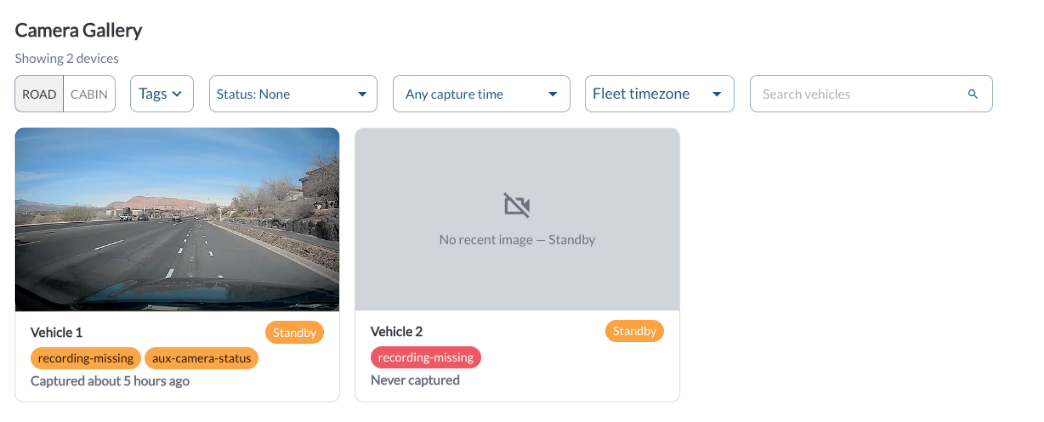
The Camera Gallery page displays the most recent still image captured by each camera in your fleet, allowing fleet managers to confirm that cameras are connected, correctly mounted, and have a clear view without opening each vehicle individually.
Note
This feature is in limited release and is off by default. If you do not
see it in your Fleet App, please contact your reseller to have the feature
enabled for your account.
Details
Each device in the fleet appears as a card showing the latest available image for the selected camera. The device count at the top of the page indicates how many devices are currently displayed.
Each card includes the following information:
| Image |
The most recent still captured by the selected camera. |
| Device Name |
The name assigned to the device. |
| Status |
The current connectivity status of the device. |
| Tags |
The tags assigned to the vehicle |
| Capture Time |
When the displayed image was captured. Displays Never captured when no image has been received from the device |
Use the ROAD and CABIN toggle to switch between the road-facing and cabin-facing camera. The page reloads to show the latest image from the selected camera for every device.
Filtering
The filter bar at the top of the page narrows the devices displayed in the gallery:
| Tags |
Displays only devices assigned to the selected tags |
| Status |
Displays only devices with the selected connectivity status |
| Tags |
The tags assigned to the vehicle |
| Capture Time |
Displays only devices whose latest image was captured within the selected time range |
| Timezone |
Sets whether capture times are shown in the fleet timezone or your local timezone |
| Search vehicles |
Displays only devices matching the entered vehicle or device name |
Refresher Widget
Keep your data up to date by using the Refresher Widget. This allows you to reload the table data so you're always viewing the latest information. To learn more, read the article How to Set the Refresher Widget.