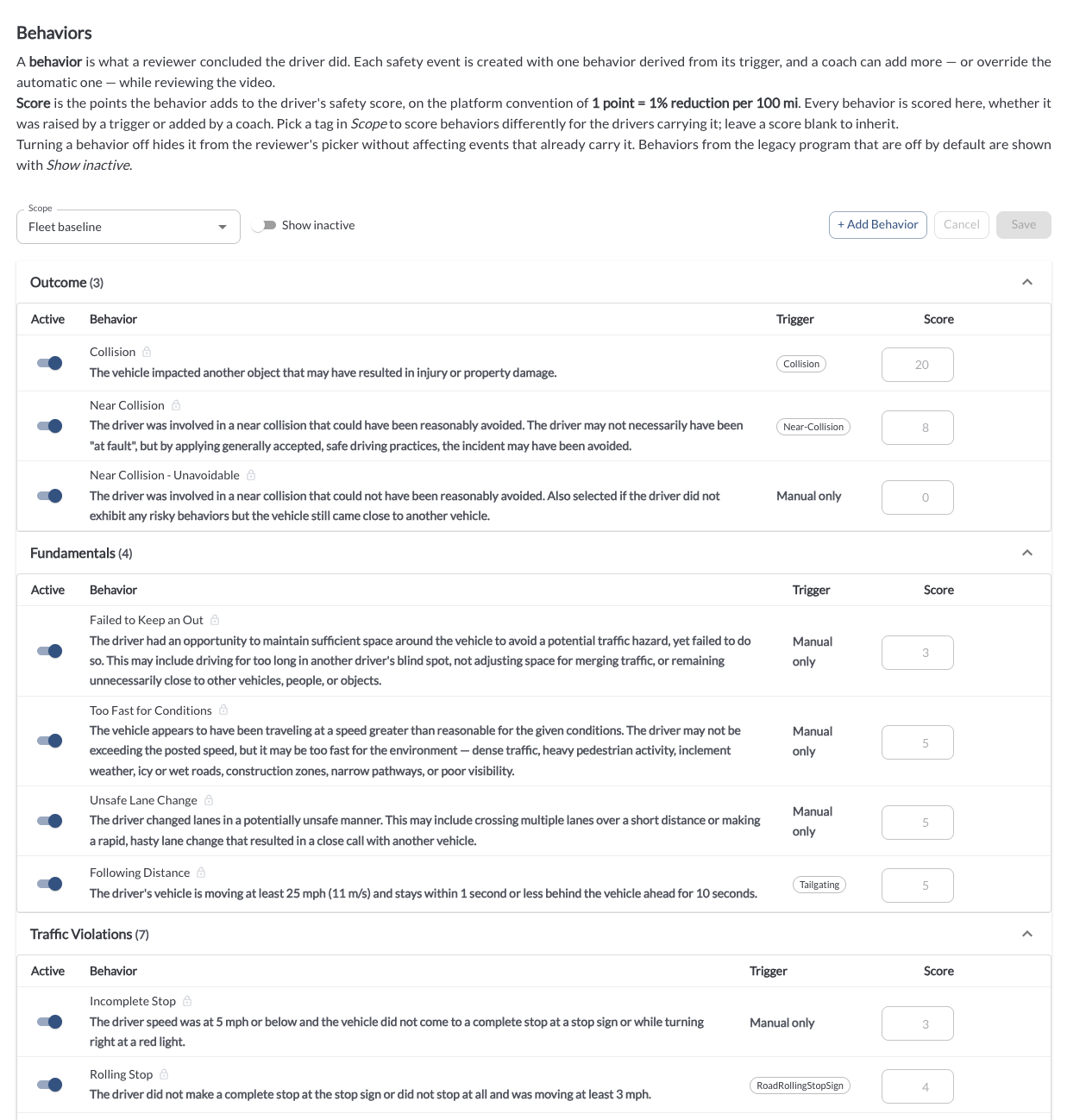
The Behaviors page is where you define the list of behaviors reviewers can apply to a safety event. A behavior is what a reviewer concluded the driver did. Each safety event is created with one behavior derived from its trigger, and a coach can add more — or override the automatic one — while reviewing the video.
Details
Behaviors are grouped into categories, each showing the number of behaviors it contains. Expand or collapse a category using the arrow on the right of its header.
Each category table includes the following columns:
| Active |
Whether the behavior appears in the reviewer's picker |
| Behavior |
The behavior name and the description shown to reviewers |
| Trigger |
The device trigger that raises the behavior automatically, or Manual only when the behavior can only be applied by a reviewer |
| Score |
The points the behavior adds to the driver's safety score |
Use Save to apply your changes, or Cancel to discard them.
Categories
Behaviors are organized into the following categories:
| Outcome |
Collisions and near collisions |
| Fundamentals |
Space management, speed appropriate to conditions, and lane discipline |
| Traffic Violations |
Stop sign, red light, and speed limit violations |
| Awareness |
Scanning, mirror use, and response to visible hazards |
| Distractions |
Handheld and other device use, food or drink, and other sources of distraction |
| Driver Conduct |
Aggressive driving, vehicle control, and positive recognition |
| Driver Condition |
Drowsiness, falling asleep, and fatigue |
| Other |
Smoking, seat belt use, and event recorder obstruction or issues |
| Harsh Driving |
Harsh acceleration, braking, and cornering |
For the full list of behaviors and their definitions, read the article Understanding Coachable Behaviors.
Score
Score is the points the behavior adds to the driver's safety score, on the platform convention of 1 point = 1% reduction per 100 miles or kilometers based on the fleet setting. To learn more, read the article Understanding the Driver Safety Score.
Activating and Deactivating Behaviors
Use the Active toggle to control whether a behavior appears in the reviewer's picker. Turning a behavior off hides it from the picker without affecting events that already carry it.
Behaviors from the legacy program are off by default. Turn on Show inactive to display them alongside the active behaviors.
Note
Deactivating a behavior does not remove it from events already tagged with
it, and those events can still be edited.
Adding a Behavior
Click Add Behavior to create a behavior specific to your fleet. Custom behaviors appear in the reviewer's picker alongside the standard behaviors, and their status can be changed at any time.
The dialog also lists common behaviors from the legacy program as chips. Clicking a chip prefills the dialog so the behavior can be recreated for your fleet.
For the full procedure, read the article How to Add a Custom Behavior.
* Lytx may offer configuration options and recommendations, but the customer decides which settings to enable and remains solely responsible for using the product in compliance with its policies and applicable laws.