The Fleet Settings tab focuses on configuring device settings and other fleet-wide settings, enabling optimized functionality.
Available Settings
-
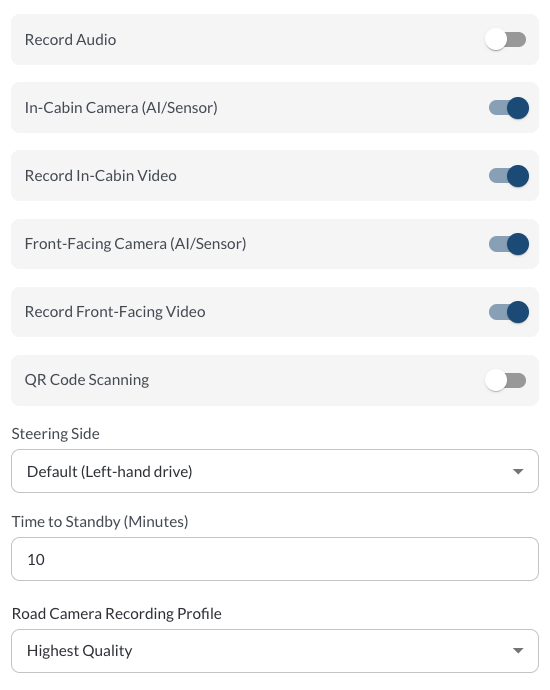
Road Camera Recording Profile / Cabin Camera Recording Profile: Select the recording quality for each camera. Available options:
Highest Quality – Prioritizes video clarity from both cameras. Best suited for situations where detail is critical, but results in the shortest storage time.
Standard Quality – A balanced option that offers good video resolution while extending recording time. Suitable for most day-to-day fleet operations.
Increased Storage – Slightly lowers video quality to significantly extend how long footage is retained. Ideal when longer recording history is more important than fine detail.
Extended Storage – Maximizes how much video can be stored by lowering resolution. Best for fleets needing the longest retention window, even if video clarity is reduced.
-
Wi-Fi: Defines the network the device joins when in range. Leave the network name blank to turn Wi-Fi off.
-
Network Name (SSID) – Enter the name of the network the device should join.
-
Security – Select the network's security type. Options include Open (no password).
-
Password – Enter the network password. This field appears when a security type that requires a password is selected.
Note
This setting requires device firmware version 2.6.315
or above.
-
Steering Side: Select the steering side of the vehicle so device behavior matches the market it operates in. Options are Default (Left-hand drive) and Right-hand drive.
Note
This setting requires device firmware version 2.6.315
or above.
-
Auxiliary Camera Recording Profile: Select the maximum recording quality for all connected auxiliary cameras. A single profile applies across all auxiliary cameras on the vehicle. The actual recording quality for each camera will adjust automatically based on what that camera supports. Available options match the road and cabin camera profiles: Highest Quality, Standard Quality, Increased Storage, and Extended Storage.
Unpowered Asset Reporting Interval (Hours): Defines how frequently an unpowered asset reports its location.
-
Trip Close Timeout: Defines how long a vehicle is allowed to continue driving at a speed below 8 km/h before the current trip is automatically closed. This helps ensure trips end correctly during slow movement such as traffic or yard operations.
- Minimum: 0 minutes
- Maximum: 60 minutes
- Default: 5 minutes
-
Idling Trigger Timeout: Determines how long a vehicle must remain stationary before it is considered idling. This setting is used for idling detection in reports and alerts.
- Minimum: 0 minutes
- Maximum: 60 minutes
- Default: 5 minutes
-
Timezone: Used for dashboards & reports: Select the timezone applied across the fleet to maintain consistency.
-
Unit System (Initial Release): Select Imperial or Metric units for your fleet. This setting controls how values are displayed across the entire application, including distance (KM/MI), speed (KPH/MPH), and fuel volume (Liters/Gallons).
Note
This feature is in Initial Release and is available only upon request.
If you do not see it in your Fleet Portal, please contact your
reseller to have the feature enabled for your account.
* Lytx may offer configuration options and recommendations, but the customer decides which settings to enable and remains solely responsible for using the product in compliance with its policies and applicable laws.