The Coaching Agent Log shows the coaching decisions the AI Coaching Agent* has surfaced for your fleet, along with the reasoning behind each one. It helps fleet managers confirm their coaching policy is being applied as intended.
The log includes one row for every decision logged within the selected date range, which defaults to the past 30 days.
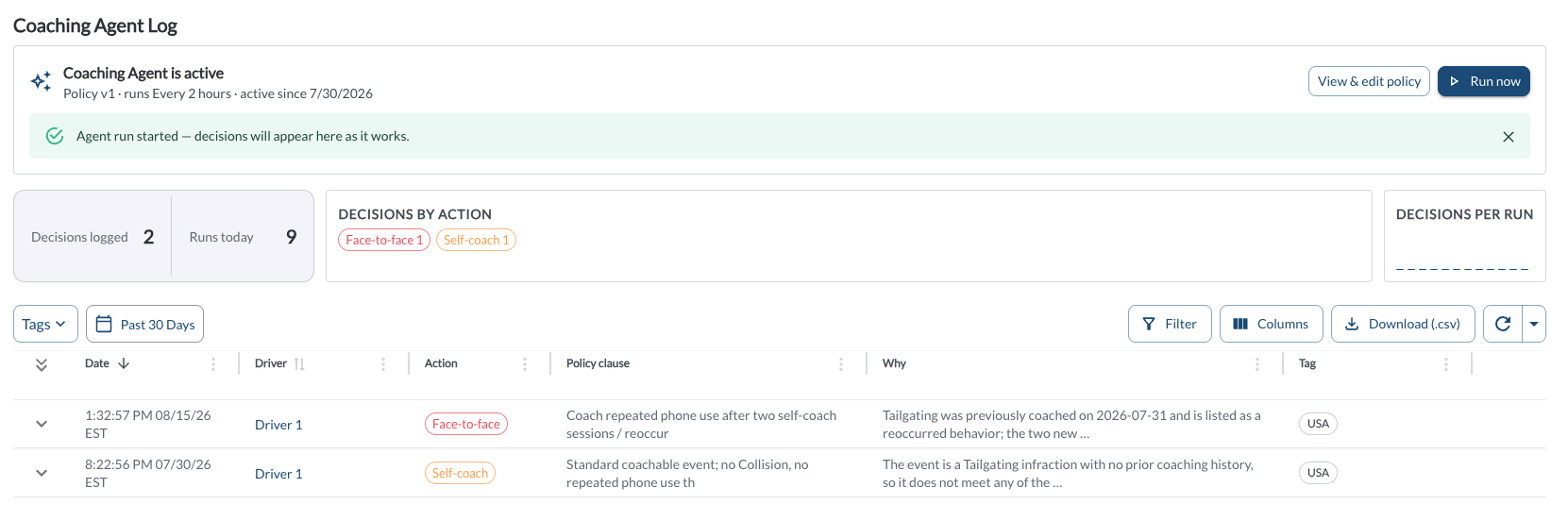
Summary Bar

Three cards across the top of the page give you a quick snapshot before you read the decision-by-decision detail below them.
| Decisions logged / Runs today |
Total coaching decisions the agent has surfaced within the selected date range, and how many times the agent has run today. |
| Decisions by Action |
A breakdown of logged decisions by coaching action (for example, Face-to-face, Self-coach), each shown as a pill with its count. |
| Decisions per Run |
The average number of decisions the agent has logged per run within the selected date range. |
Note
If the agent hasn't been set up yet, you'll see a banner instead of these
counts: "The Coaching Agent is not active. Edit the policy to turn it
on." Read the article
How to Set Up the Coaching Policy
to get started.
Coaching Agent Log Details
The table supports downloading, sorting, filtering, resizing columns, and other customization options. For a complete guide, read the article How to Use Tables in the App.
| Date |
When the decision was made. |
| Driver |
The driver the decision applies to. |
| Action |
The coaching action the agent recommended. |
| Policy clause |
The clause in your coaching policy that drove the decision. |
| Why |
A plain-English explanation of the agent's reasoning. |
| Group |
The fleet group the driver belongs to. |
Note
Click the arrow at the left of a row to expand it and see additional detail for that decision.
Filtering
-
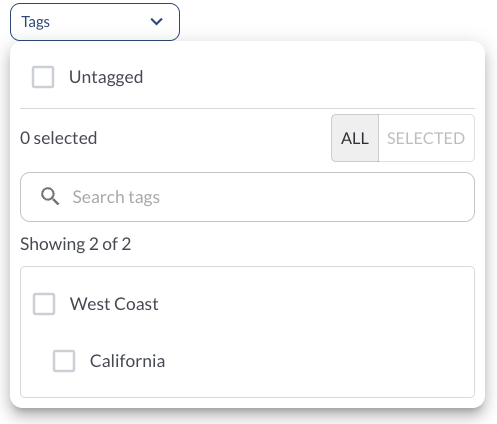
Use the Tag Filter to narrow down the table to display only trips associated with specific tags.
-
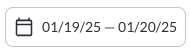
Use the Date Picker to select a different date range. The default date range is Today. For more details on using the Date Picker, read the article How to Use the Date Picker.
Refresher Widget
Keep your data up to date by using the Refresher Widget. This allows you to reload the table data so you're always viewing the latest information. To learn more, read the article How to Set the Refresher Widget.
*AI-generated responses may be incomplete or inaccurate - always verify before acting on safety, employment, or operational decisions.