The Coaching Policy tells the AI Coaching Agent* how to score events, when to escalate, and how to route coaching to your drivers. This article walks through creating and activating a policy for your fleet.
Open the Coaching Policy

- Go to the Coaching Agent Log.
- Click Set up policy.
Choose How to Build Your Policy
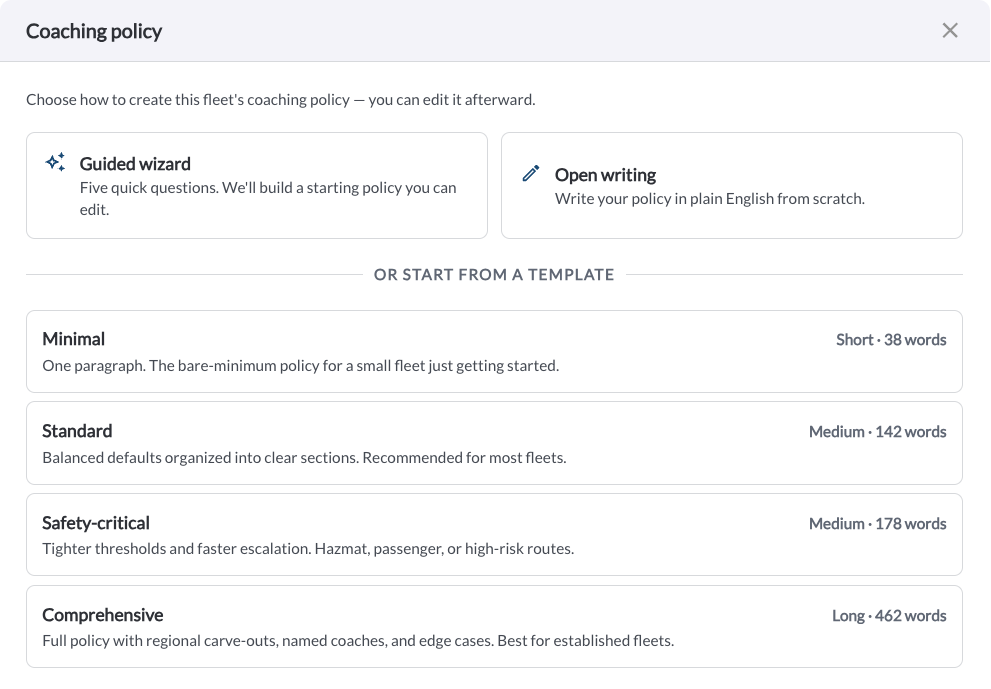
In the Coaching Policy window, choose one of two ways to create your policy:
- Guided wizard - answer five quick questions and we'll build a starting policy for you to edit.
- Open writing - write your policy in plain English from scratch.
You can also start from a template instead:
- Minimal - one paragraph, the bare-minimum policy for a small fleet just getting started (38 words).
- Standard - balanced defaults organized into clear sections, recommended for most fleets (142 words).
- Safety-critical - tighter thresholds and faster escalation, for hazmat, passenger, or high-risk routes (178 words).
- Comprehensive - a full policy with regional carve-outs, named coaches, and edge cases, best for established fleets (462 words).
Note
Whichever option you choose, you can edit the resulting policy afterward.
Use the Guided Wizard
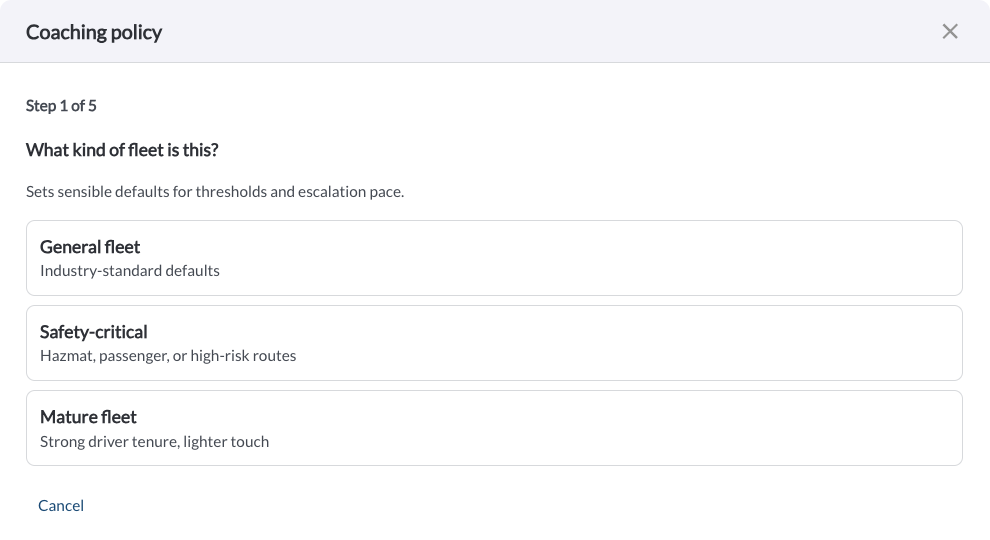
- Select what kind of fleet this is. This sets sensible defaults for thresholds and escalation pace.
- General fleet - industry-standard defaults
- Safety-critical - hazmat, passenger, or high-risk routes
- Mature fleet - strong driver tenure, lighter touch
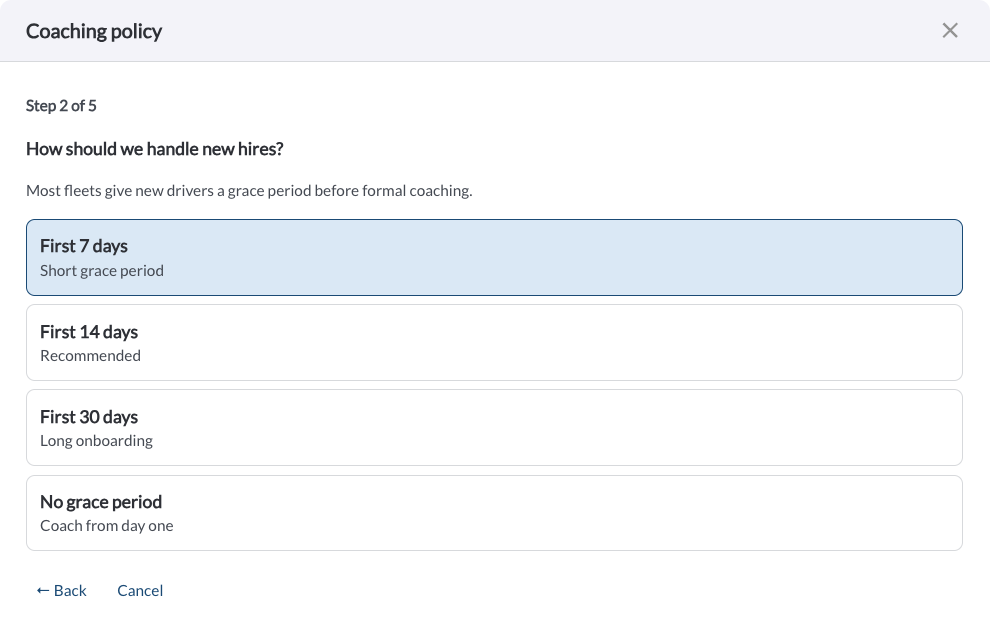
- Select how to handle new hires. Most fleets give new drivers a grace period before formal coaching.
- First 7 days - short grace period
- First 14 days - recommended
- First 30 days - long onboarding
- No grace period - coach from day one
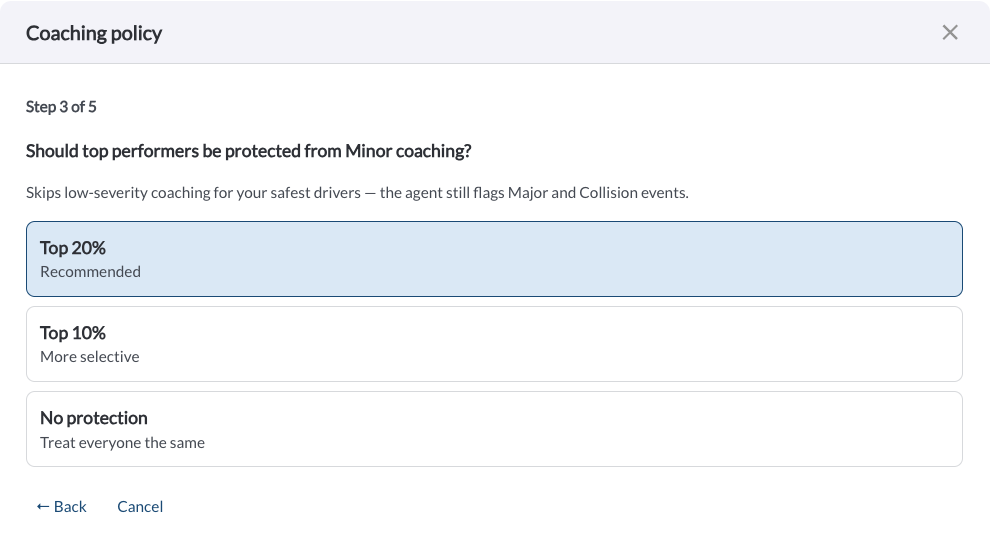
- Select whether top performers should be protected from minor coaching. This skips low-severity coaching for your safest drivers; the agent still flags Major and Collision events regardless of this setting.
- Top 20% - recommended
- Top 10% - more selective
- No protection - treat everyone the same
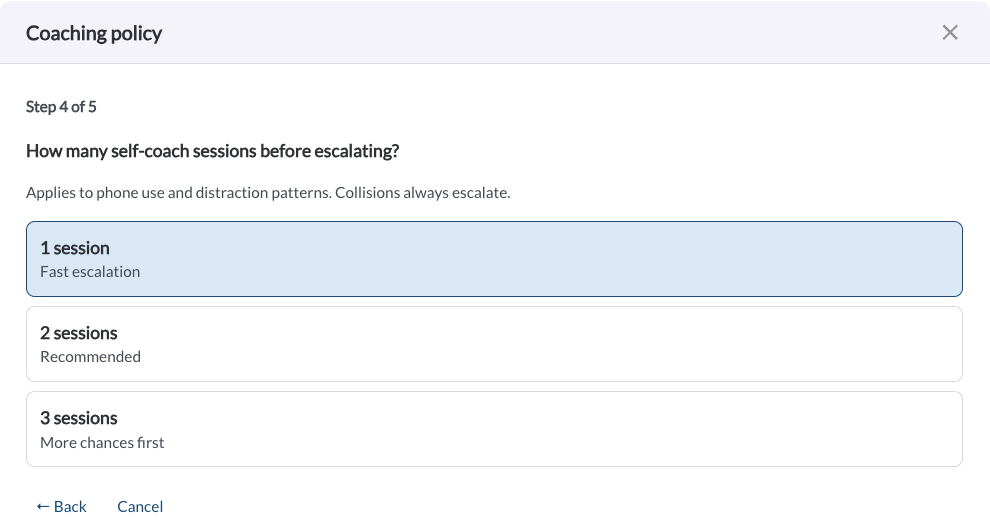
- Select how many self-coach sessions happen before escalating. This applies to phone use and distraction patterns; collisions always escalate.
- 1 session - fast escalation
- 2 sessions - recommended
- 3 sessions - more chances first
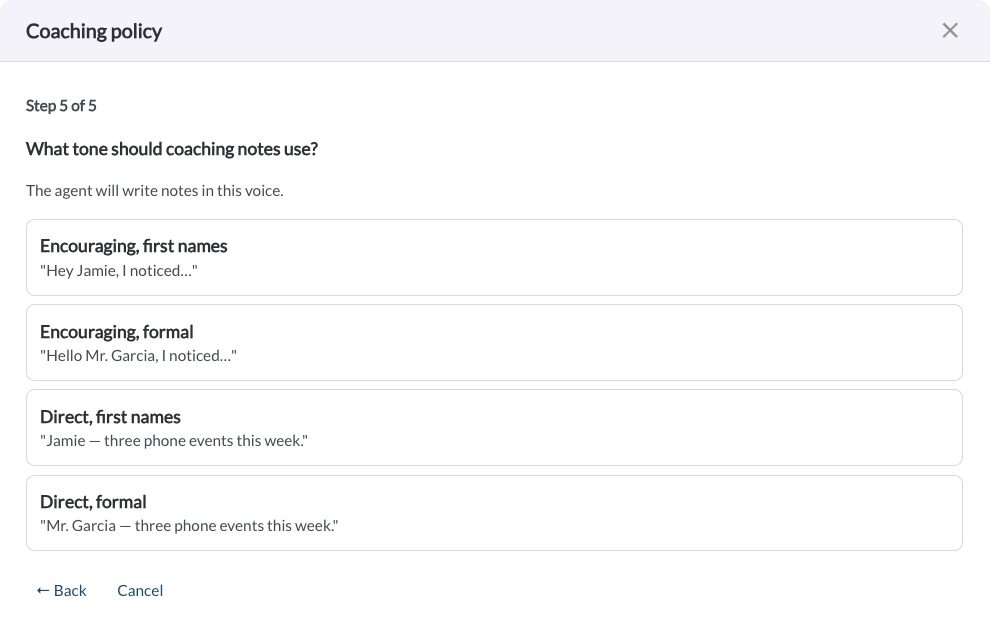
- Select what tone coaching notes should use. The agent writes its notes in this voice.
- Encouraging, first names - for example, "Hey Jamie, I noticed..."
- Encouraging, formal - for example, "Hello Mr. Garcia, I noticed..."
- Direct, first names - for example, "Jamie - three phone events this week."
- Direct, formal - for example, "Mr. Garcia - three phone events this week."
- Click Back at any step to revisit a previous answer, or click Cancel to close the wizard without saving.
Write Your Policy Directly
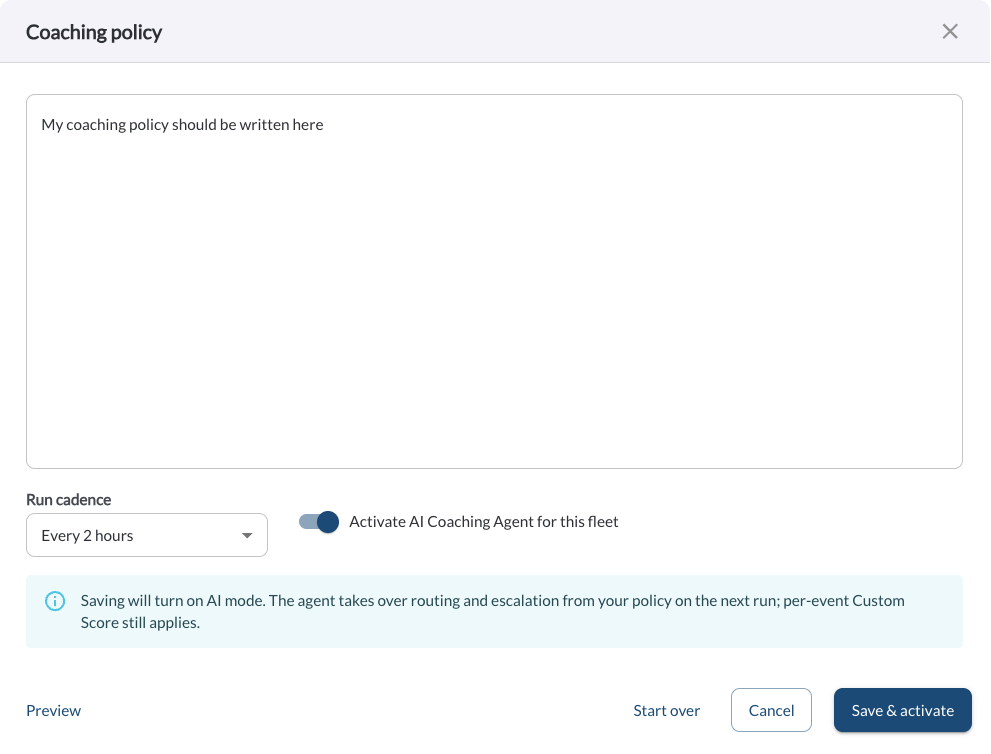
- Enter or edit your coaching policy in the text box.
- Click Preview to see how the agent will interpret the policy before saving. The text box switches to a plain, read-only rendering of your policy text.
- Click Start over to discard your changes and choose a different starting point.
Set the Run Cadence and Activate
- Use the Run cadence dropdown to choose how often the agent evaluates new events against your policy (for example, every 2 hours).
- Turn on Activate AI Coaching Agent for this fleet.
- Review the notice: saving turns on AI mode. Starting with the next run, the agent helps manage routing and escalation based on your policy.* Per-event Custom Score still applies.
- Click Save & activate.
Note
Once saved, the agent begins running on your chosen cadence, and its coaching
decisions start appearing in the Coaching Agent Log for you to review. Read
the article
How to Run the Coaching Agent.
Edit Your Policy Later
Once a policy is active, the Coaching Agent Log shows a banner confirming the policy version, run cadence, and activation date.
Steps to edit an active policy
- Go to the Coaching Agent Log.
- Click View & edit policy in the "Coaching Agent is active" banner.
- Make your changes, then click Save & activate.
To turn the agent off, click View & edit policy, turn off Activate AI Coaching Agent for this fleet, then click Save & activate.
*AI-generated responses may be incomplete or inaccurate - always verify before acting on safety, employment, or operational decisions.