The video player is a simple and intuitive tool designed to provide essential playback controls, including a picture-in-picture view for vehicles with both road-facing and in-cab cameras.
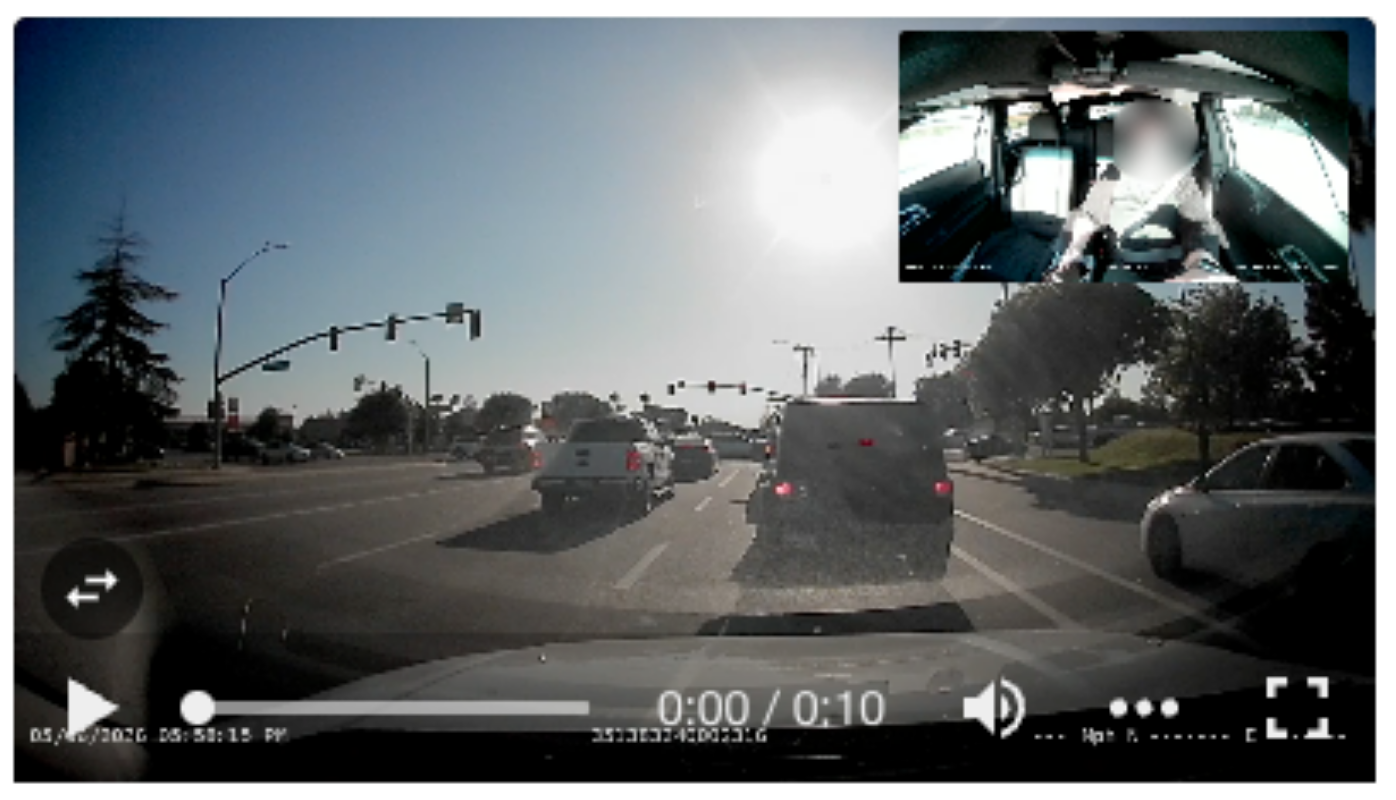
Video Player Features
1. Play/Pause
The Play button starts the video playback. When the video is playing, this button toggles to Pause, allowing you to temporarily stop playback.
2. Duration Display
Shows the current playback time and the total video length, making it easy to track progress.
3. Volume Control
Allows you to toggle the sound on or off. Click the Speaker Icon to mute or unmute the audio.
4. Full Screen
Expand the video player to full screen. To exit full-screen mode, press the Esc key or click the icon again.
5. Picture-in-Picture (Dual Camera View)
For vehicles with both a road-facing and an in-cab camera, the video player displays both feeds at once, the road-facing view as the main video, with the in-cab view shown as a smaller inset in the corner. A label beneath the player indicates which feeds are currently showing, for example, "Showing: Road Video and Driver Video."
- Switch Camera View: Click the swap icon in the top-left corner of the player to switch which feed is shown as the main video and which appears as the picture-in-picture inset.
6. Quick Actions Menu
Note
Rotation and Flip Horizontal settings adjusted in the video player apply
to the current viewing session only. To set a permanent orientation for
a camera, update the camera configuration in the vehicle's Camera tab
in Asset Configuration.