The Date Picker is a user-friendly tool designed to help you quickly choose a date or quarter range using a mix of predefined options and a calendar or grid interface for custom selection. Depending on where you're using it in the app, you may see one of the following picker types.
Date Range Picker
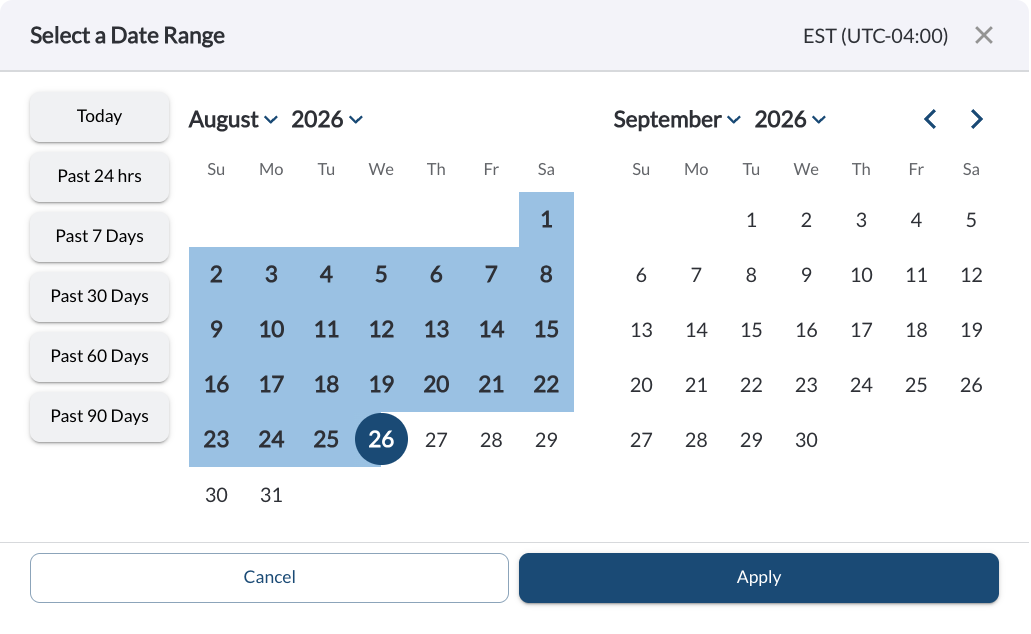
Displays the current month alongside the next month. Use the arrow buttons to move between months.
- Fleet Timezone: Defined in the fleet settings and visible in the top right corner of the dialog box. For more details, see Fleet Settings.
- Quick-Select Date Ranges: Preset options for frequently used time periods.
- Today: Data from midnight to midnight of the current day (fleet timezone).
- Past 24 hrs: Data from the last 24 hours, counted from the current time.
- Past 7 Days: Data from the last seven full days (midnight to midnight, fleet timezone).
- Past 30 Days: Data from the last 30 full days (midnight to midnight, fleet timezone).
- Past 60 Days: Data from the last 60 full days (midnight to midnight, fleet timezone).
- Past 90 Days: Data from the last 90 full days (midnight to midnight, fleet timezone).
To choose a date range, either click a predefined range or select specific dates directly from the calendar. For custom ranges, click your start and end dates, then confirm by clicking Apply.
Tip
Use predefined ranges for quick and convenient filtering.
Tip
Navigate easily through months using the arrow buttons for custom date
selections.
Quarter Selector
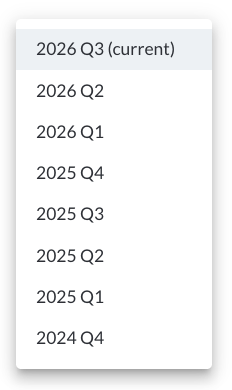
A dropdown list for selecting a single quarter. Click the dropdown to see available quarters, listed most recent first, with the current quarter marked "(current)." Select a quarter to apply it.
Quarter Range Picker
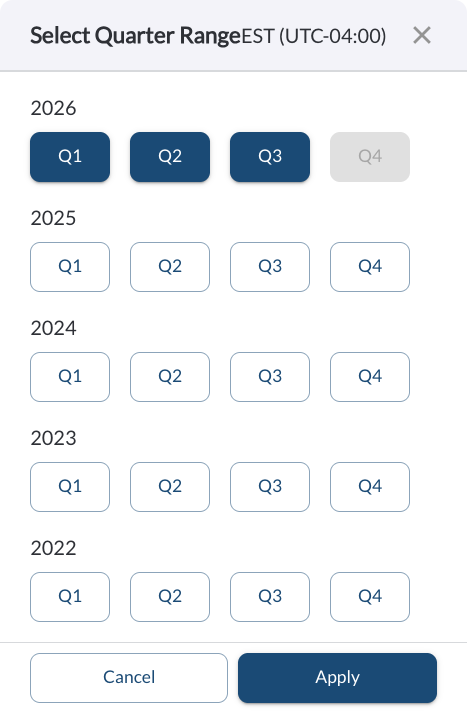
Displays a grid of quarters grouped by year, allowing you to select a range spanning multiple quarters. Click a starting quarter, then a later quarter, to highlight everything in between as your selected range. Quarters that aren't yet available (such as a future quarter that hasn't started) appear grayed out and can't be selected. Confirm your selection by clicking Apply.