The tables in the app offer powerful features for filtering, sorting, resizing, and exporting data. This guide explains how to use these functionalities to manage and analyze data effectively.
Features and Actions
1. Filters
Each column has its own filter. Click the filter button to toggle between open and closed filters. By default, the filters are open.
2. Column Management
3. Sorting
- Sorting Options
 : Each column supports sorting in:
- Ascending Order (ASC)
- Descending Order (DES)
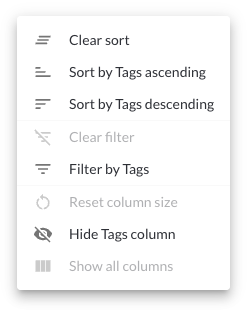
- Three Dots Menu in Each Column:
- Clear Sort: Remove any applied sorting.
- Sort ASC: Sort in ascending order.
- Sort DES: Sort in descending order.
- Clear Filter: Remove applied filters.
- Filter: Open the filter option.
- Reset Column Size: Restore the column width to its default size.
- Hide the Specific Column: Specifically hide this column.
4. Exporting Data
- Download Table Data: Export the table content as a report file for offline use or sharing.
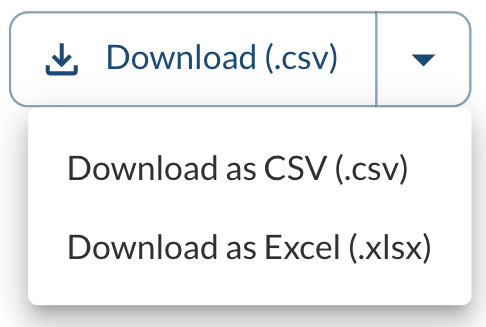
- In cases where Excel export is supported, the Download button appears as a dropdown, allowing you to select the desired file format (for example, CSV or Excel) before downloading.
5. Grouping
- You can customize the grouping to better match your workflow:
- How to Group the Table
- Locate the column you want to group by.
- Click the (⋯) menu on the column header.
- Select Group By.
6. Pagination
- Rows per Page: Adjust the number of rows displayed per page using the pagination controls at the bottom of the table.
- Row Count Display: View the range of rows currently displayed and the total number of rows in the table. Example: "1-20 of 200"
