The Safety tab allows fleet managers to control how detected events are handled across their fleet. This is where you configure audible alerts, event triggers, media capture, and sensitivity. These settings apply at the fleet level, ensuring a consistent safety policy across all vehicles.
You can also override these settings per vehicle directly from the Assets Overview or the Map page, allowing for more granular control when needed — for example, if certain vehicles require stricter thresholds or customized alert behavior.
To open the page, go to Settings → Safety.
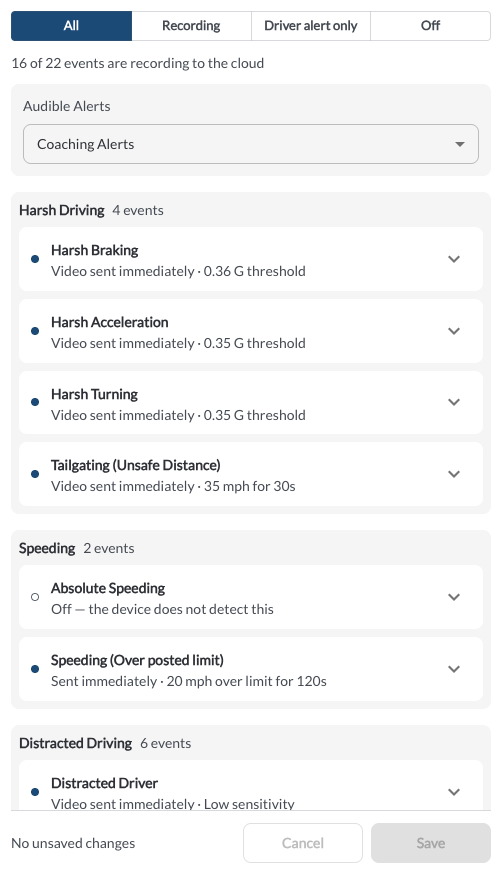
Page Layout
The page opens with a summary line above the event list showing how many events are currently recording to the cloud out of the total number supported, for example 19 of 22 events are recording to the cloud. Events are grouped by subject — such as Harsh Driving, Speeding, Distracted Driving, ADAS, Incidents, Camera Health, and Driver Trigger — and each group header shows the number of events it contains. Each event appears as its own row with:
-
Status dot: A filled dot indicates the event is on; an empty dot indicates it is off, An orange dot indicates driver alert only status.
-
Event name: The event as it appears in the product, for example Tailgating (Unsafe Distance).
-
Configuration summary: A plain-language description of the event's current configuration, for example Video sent immediately · 0.36 G threshold, Video sent after driver correction window · 55 mph for 10s, or Off - the device does not detect this.
-
Expand arrow: Opens the row to reveal and edit that event's settings.
Filtering the Event List
Use the filter buttons at the top of the page to narrow the list:
| Filter |
Shows |
| All |
Every supported event. |
| Recording |
Events that record media to the cloud. |
| Driver alert only |
Events that trigger an in-cab alert without recording to the cloud. |
| Off |
Events that are currently disabled. |
Available Settings
To view the full list of safety event types, along with detailed explanations of each available setting (such as alert types, sensitivity levels, and media actions), refer to the Understanding Safety Events article.
* Lytx may offer configuration options and recommendations, but the customer decides which settings to enable and remains solely responsible for using the product in compliance with its policies and applicable laws.