Use this workflow to review a reported defect and update its status once it has been addressed, dismissed, or flagged as critical.
- In the Fleet Portal, go to Maintenance → DVIR → Defects.
- Locate the defect you want to update.
- Click the (⋯) menu at the end of the row and select Update.
- Review the defect details, including the vehicle, category, description, and any driver-provided images.
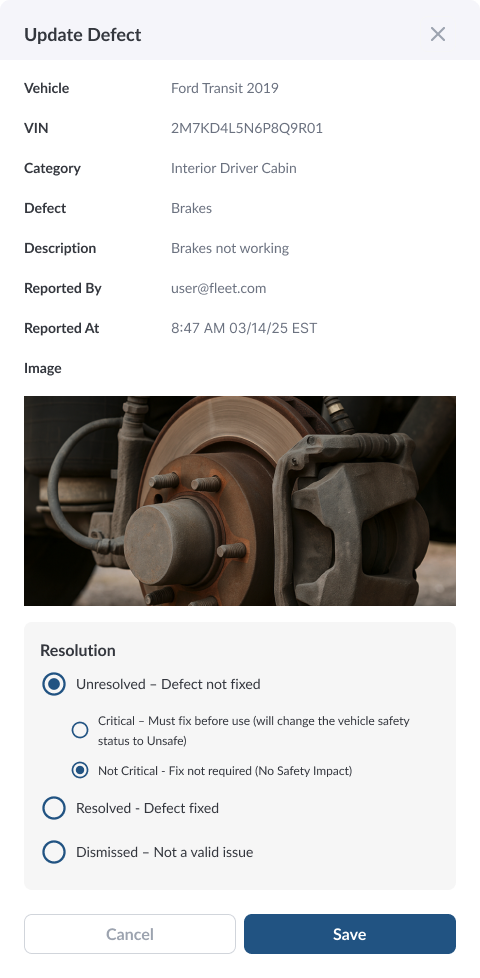
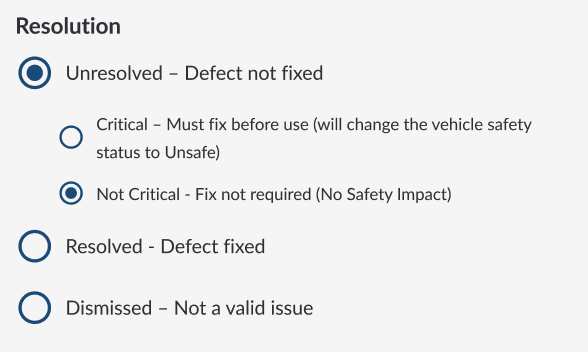
- Update the defect status to one of the following:
- Unresolved: Mark the defect as Critical or Not Critical.
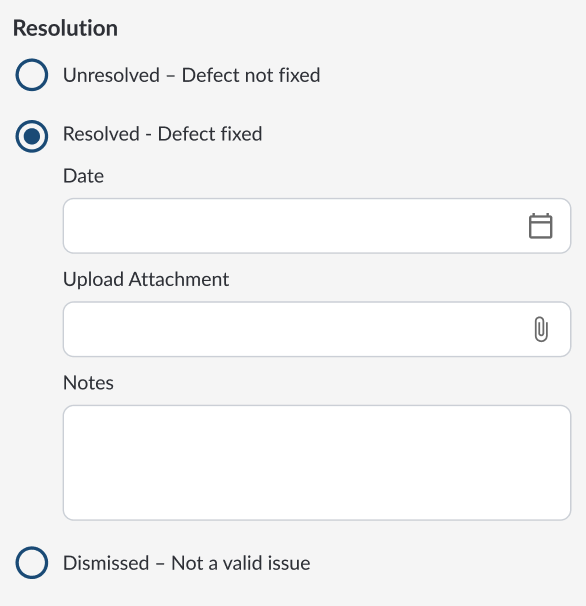
- Resolved: Add the resolution date, attachments (e.g., repair documents, photos), and notes to confirm the issue has been addressed.
- Dismissed: Mark the defect as dismissed if it does not impact vehicle safety.
- Click Save to apply the update.
Note
When a defect is first created, it is automatically marked as Unresolved
(Not Critical) by default