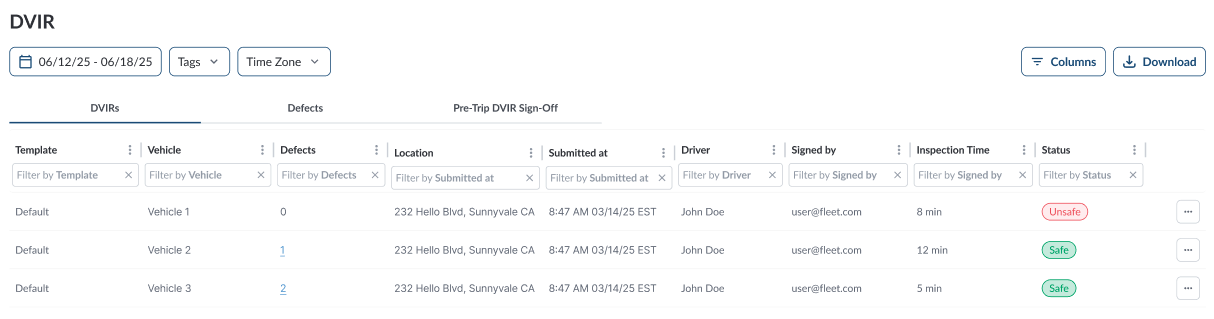
The DVIR page in the Fleet Portal lets you review all submitted inspection reports, track reported defects, and verify pre-trip sign-offs. You can view inspection details, check status, and download records for compliance and audits.
Accessing DVIR Reports
- In the Fleet Portal, go to the Maintenance section.
- Select DVIR.
- The page has three tabs:
DVIRs Table
The table displays all reported DVIRs, allowing you to efficiently organize and access the details. It supports downloading, sorting, filtering, resizing columns, and other customization options. For a complete guide, refer to the article How to Use Table Options.
| Template |
The DVIR template used. |
| Vehicle |
The vehicle inspected. |
| Defects |
Number of defects reported during the inspection (click to view defect details). |
| Location |
The address where the inspection was submitted. |
| Submitted At |
Date and time of submission. |
| Driver |
Driver who completed the inspection. |
| Signed By |
User who signed the DVIR record. |
| Inspection Time |
Duration of the inspection. |
| Status |
Final inspection status, which can be either Safe or Unsafe. Safe means no defects were reported, or defects were reported but later reviewed and marked as safe by the manager. Unsafe means at least one defect was reported that makes the vehicle unsafe to drive until repaired. |
Available action:
-
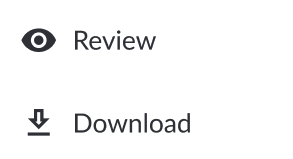
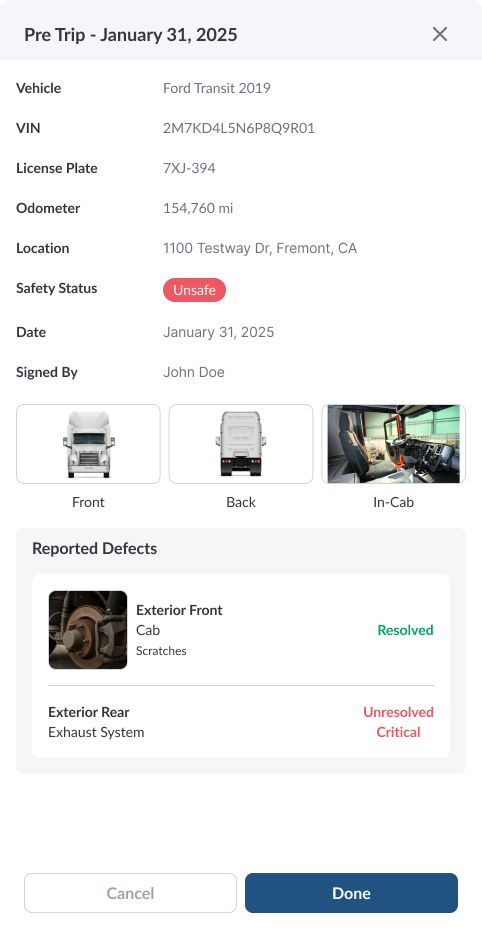
Review: Click the (⋯) menu at the end of a row and select Review to open the full inspection details, including reported defects, notes, and images.
-
Download: Click the (⋯) menu and select Download to export the DVIR as a PDF for audits, compliance, or record-keeping.
Filtering