The Defects tab in the DVIR section of the Fleet Portal shows all reported issues from driver inspections. From here, fleet managers can review defect details, track their status, and mark them as resolved once the vehicle has been repaired or confirmed safe to operate.
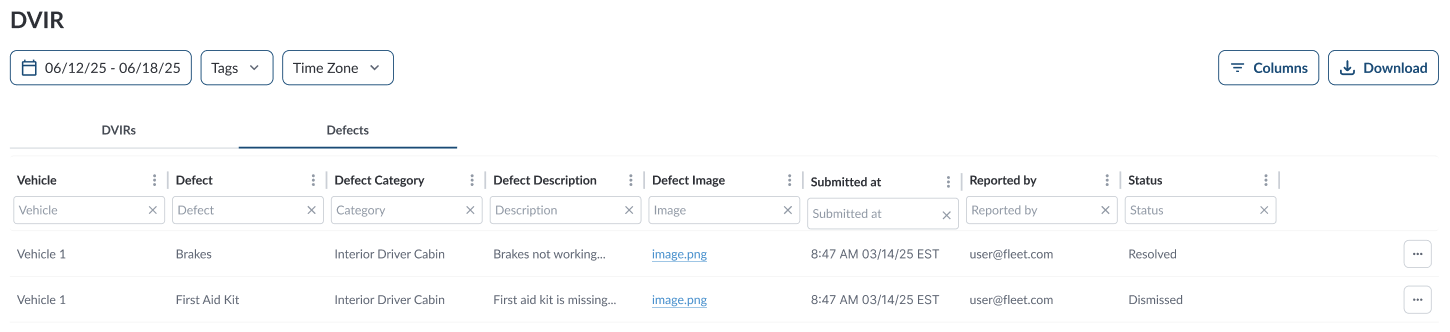
Accessing Defects
- In the Fleet Portal, go to the Maintenance section. Select DVIR. The page has three tabs:
-
DVIRs: Shows all submitted inspections (see DVIR Reports Overview for more details).
-
Defects: Lists all defects reported during inspections.
-
Pre-Trip DVIR Sign-Off: Displays sign-off status for pre-trip inspections (see Reviewing Pre-Trip DVIR Sign-Off for more details).
Defects Table
The table displays all reported defects, allowing you to efficiently organize and access the details. It supports downloading, sorting, filtering, resizing columns, and other customization options. For a complete guide, refer to the article How to Use Table Options.
| Vehicle |
The vehicle where the defect was reported. |
| Defect |
The specific inspection item marked as defective. |
| Defect Category |
The area of the vehicle where the defect was identified: Exterior - Front, Exterior - Rear, Exterior - Side and Underneath, Interior - Driver Cabin, Interior - Passenger Area, Other. |
| Defect Image |
Photo evidence submitted with the defect (if required by settings). |
| Defect Description |
Description provided by the driver about the issue. |
| Submitted At |
Date and time the defect was reported. |
| Reported By |
The driver who submitted the inspection report. |
| Status |
Current defect state: Resolved, Unresolved, or Dismissed. For what each status means and how to update it, see How to Resolve a Defect. |
Filtering