An SD card extends local video storage and is required for auxiliary camera functionality. The card can be installed in the LytxOne Gateway (LX1-G) even when the auxiliary cameras themselves connect through a LytxOne Hub (LX1-H), or it can be installed directly in the Hub. Only one card is needed per vehicle setup.
LytxOne Gateway (LX1-G)
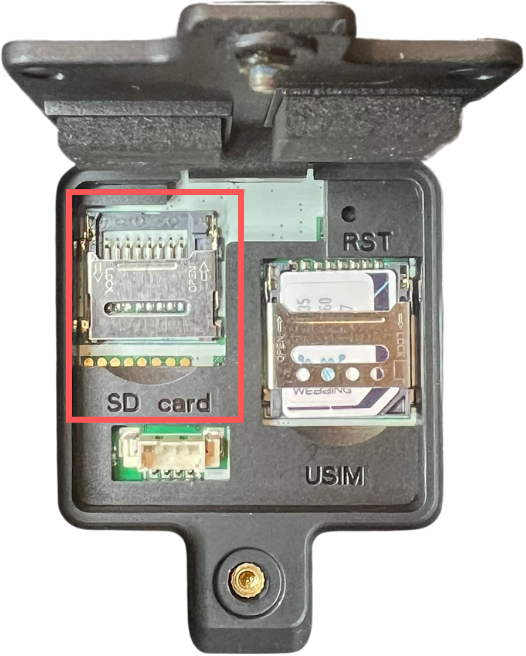
How to Add the SD Card
- Locate the cover at the bottom of the Gateway.
- Remove the screw and open the cover.
- Insert the SD card into the internal slot until it clicks.
- Close the tamper cover.
- Re-secure it with the screw.
LytxOne Hub (LX1-H)
How to Add the SD Card
- Open rubber cover on side of hub (below LEDs)
- Insert micro SD card facing down (Lytx logo on hub facing up)
- Press SD into the slot until audible click can be heard
- Replace the rubber cover over the slot
Note
Once inserted, enable SD card recording in the Fleet Portal to begin
saving footage.
How to Enable SD Card Recording in the Fleet Portal
- Log in to the Fleet Portal.
- Find the vehicle: go to the Vehicles page, or click a vehicle from the Map and select Edit Vehicle.
- Open the Settings tab inside the vehicle's profile.
- Toggle Enable SD Card Recording. For more on this setting, see Understanding Assets Configuration.
- Click Save.
How to Format the SD Card
If you're reusing an SD card or experiencing recording issues, you can format it directly from the Fleet Portal. See Assets Overview for more on managing assets from this page.
- Go to the Vehicles page.
- Click the (⋯) menu next to the vehicle.
- Select Format SD Card.
Note
The Format SD Card option is only available if SD card recording is already
enabled for the vehicle.
Warning
Formatting the SD card cannot be undone, and all stored footage will
be permanently lost and cannot be recovered.