New: Coachable Behaviors on Safety Events
Safety events can now be tagged with coachable behaviors, allowing a reviewer to correct what an event was actually about so coaching is based on driving behaviors rather than raw device triggers. Behaviors carry through to coaching sessions, driver scores, the Behaviors Report, Coach Assist and CSV exports. Driver scores remain unchanged for events that are not edited.
Behaviors are managed in Safety Settings, where fleets can rename, re-score or deactivate the standard behaviors and add their own.
Every behavior on the Safety Behaviors page is now scoreable, not only the ones raised by a device trigger, so behaviors added by a reviewer carry weight in the driver score.
Each behavior also accepts its own score per tag. Editing a behavior while a tag is selected changes only that tag's override and leaves the fleet-wide baseline in place. Removing an override returns the behavior to the fleet baseline rather than to zero.
Custom Score has moved from Coaching Workflow to the Behaviors page. Coaching Workflow now covers routing and escalation only, and saving it reports success or failure.
Scores calculated before the upgrade are unchanged.
Behavior configuration and scoring are controlled by the fleet. Fleets are responsible for how behaviors, scores, and coaching records are used, including compliance with applicable employment, collective bargaining, and privacy obligations.
Learn more → Behavior Settings
Note
Coachable behaviors are available to fleets using the Driver Safety Program.
New: Camera Gallery
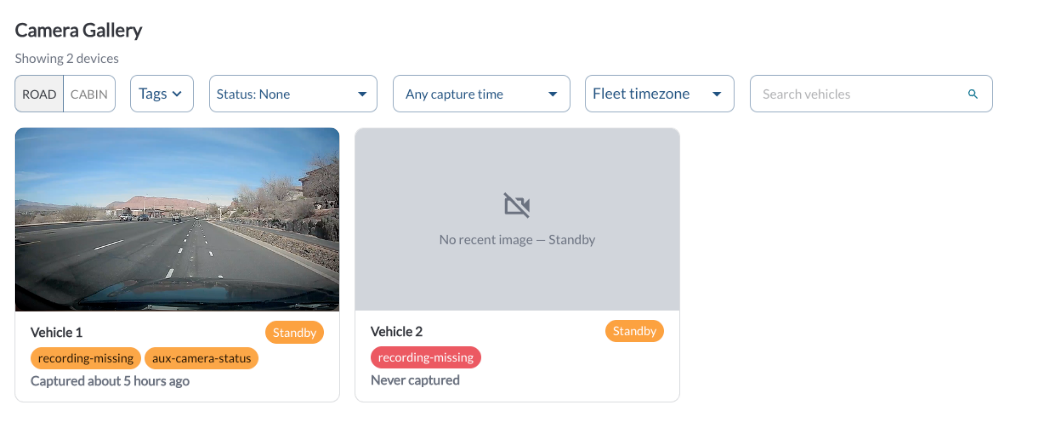
A new Camera Gallery page under Health shows the latest road and cabin still from each vehicle, making it easier to spot misconfigured or blocked cameras at a glance.
Devices are asked for a snapshot at ignition and on a configured interval, and snapshots continue to arrive while a vehicle is parked. A camera that returns an empty image is reported as not working. Capture times follow the Fleet/Local timezone toggle, and stills require the View media permission.
Cabin capture is controlled by the fleet. Fleets are responsible for providing any notices and obtaining any consents required by applicable law before enabling it.
Learn more → Camera Gallery
Note
This feature is in limited release and is off by default. If you do not see it in your Fleet App, please contact your reseller to have the feature enabled for your account.
New: Custom DVIR Template
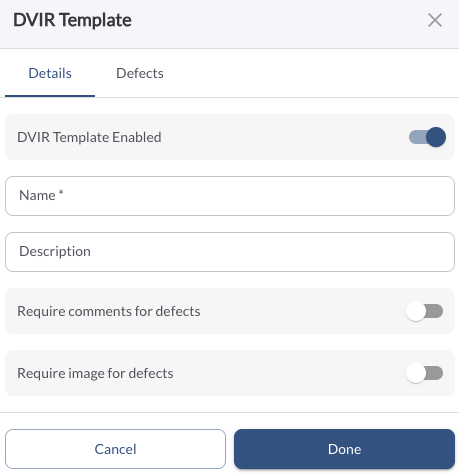
A fleet can create, edit, review, assign, delete, and download its own DVIR template. Photo and comment requirements on a fleet-authored template override the org DVIR config; on the system default template, the org settings apply. Custom defects created by a fleet are not visible to other fleets, and duplicate defects are prevented. Fleets without a template of their own continue to use the system default.
New: Required side walk-around photo The photo is captured in the driver app and appears on both the DVIR review page and the PDF. An inspection cannot be submitted without it.
Fleets are responsible for ensuring that any template they create captures all items required by applicable regulations and their own maintenance program. Lytx makes no representation that a fleet-authored template satisfies any regulatory requirement.
Improvement: Driver Alert Ladder
Each behavior in Settings → Safety now has a driver alert ladder controlling how long the driver is alerted, how often the alert repeats, and which alert in the sequence creates the event. A plain-language summary under each behavior describes what the configured ladder will do.
A ladder that cannot produce an event is refused at save time with an explanation, including a repeat interval below five seconds, which the device treats as a single alert.
Also in this release:
- Harsh braking, acceleration and cornering each accept a minimum speed. Events below that speed are not raised.
- Collision and Near Collision have an in-cab audible alert toggle, on by default.
- Accelerometer data is attached to every harsh driving and collision event.
- Event Generation now keeps only the minimum time between events. The "how many times before an event" setting has moved into the alert ladder, where it can be set per behavior.
Event Generation now keeps only the minimum time between events. The "how many times before an event" setting has moved into the alert ladder, where it can be set per behavior.
New: Separate Coaching and Safety Configuration Permissions
Safety access is now two permissions, shown on the roles screen as Coach drivers & review events and Configure the safety program.
- Coaching covers completing and updating tasks, running coaching sessions, issuing recognitions, declining safe-driving credit, editing behaviors on an event, and changing an event's status, driver or bulk assignment.
- Configuration covers coaching workflow, action plans, coach assignments, coaching agent policy, the behavior catalog and event generation.
Custom roles that could configure the safety program before the upgrade keep everything they had, and read-only access is unchanged.
Improvement: Safety Scoring and Distances in Fleet Units
Safety scoring now follows the fleet's own distance units — per 100 km for a metric fleet and per 100 miles for an imperial one — on the dashboard, the reports and the driver profile. The distance figure on the driver profile follows the fleet's units as well.
Note
Metric fleets will see their safety scores change with this release. The underlying data is unchanged; only the units have changed. Capture reference scores before upgrading if you need to compare periods across the release.
Improvement: Edit Odometer, VIN and Engine Hours from the Vehicle Sidebar
Odometer and VIN can now be corrected directly from the vehicle sidebar in the Maps View, and an odometer accumulated from GPS is labeled (GPS) there as it already is in the tables.
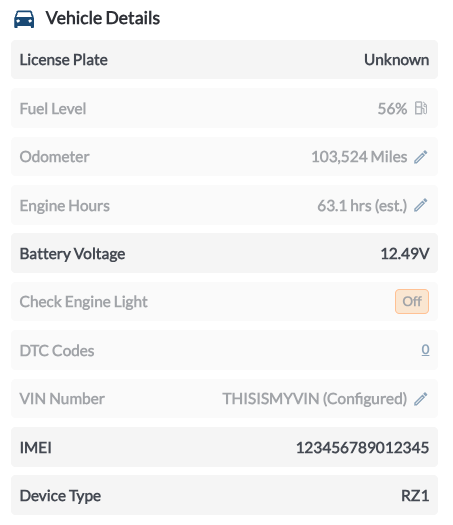
Estimated engine hours can also be corrected from the sidebar — the pencil next to the reading opens the same Set Engine Hours dialog, so there is no need to go to the Assets page. Engine hours now show (est.) when the reading comes from the device's own counter rather than the vehicle's ECU.
Improvement: Custom Date Range on the Driver Profile
The driver profile now accepts any date range in addition to 7, 30 and 90 days, and the selected period applies to Coaching History and Recognitions as well as Events.
The period is shared across the Driver Safety pages, so opening a driver from a report carries that report's range across. The shared period is capped at 365 days, the longest range every report supports.
A driver's Events tab also filters, sorts and pages through every event in the period, with a Media column and a media-only filter.
Improvement: Fleet Setting Location Label Preference
A new location label preference lets events and trips display the geofence name instead of the street address, making locations easier to recognize across the platform.

Improvement: Geofence Column in CSV Exports and Scheduled Reports
A Geofence column has been added to the trips, idling, speeding and alerts log CSV exports, and to scheduled reports.
Improvement: Geofence Search, Drawings and Import
Searching an address drops a pin on the map, and drawing a geofence shows the size of the shape as it is drawn. A 10,000-row geofence CSV import now runs at a consistent speed from the first row to the last, and geofence pages load faster.
Improvement: Multiple Trips on Fleet Map
Up to 20 trips now render on the fleet map at once, each in a distinct color, and the legend scrolls inside the map rather than running past its edge. Trips load in batches so a large selection does not flood the backend, and deselecting a trip cancels any loads still queued.
Improvement: Historical Proximity Search on Large Fleets
Proximity search now completes on fleets with a long trip history instead of timing out. Results and the exported CSV are unchanged from the previous release for the same query.
Proximity results, the radius dropdowns and the exported CSV also read in meters and kilometers for metric fleets.
Improvement: Asset Timezone on the Trips Map
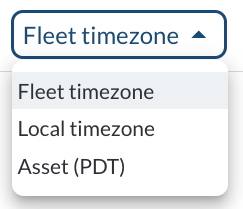
Asset timezone is now available in the timezone selector on the trips map, showing trip times in the vehicle's own timezone.
Improvement: Tag Group Filter in the Behaviors Report
The Behaviors Report now includes the tag group filter used on the other Driver Safety pages, and the filter is applied to its CSV download.
Improvement: Clearer Login Error Message
The generic Unauthorized login error has been replaced with a message that explains what went wrong and what to do next.
Improvement: Installation History
Each device now keeps a full installation history, so a re-install no longer overwrites the previous one.
The Installations report gains a per-device drill-down showing every install with its date, installer and photos.
Improvement: Coaching Agent Log Details
The row drawer in the Coaching Agent Log now shows the shows the factors and the policy clause applied along with the policy clause it was based on, giving the human reviewers more context without leaving the log to make the decision themselves.
Improvement: Mobile Enhancements
The Fleet/Local timezone switch is now available on phones and tablets. Mobile now offers the same table actions as desktop — Add, Refresh and CSV download appear wherever your role allows.
The mobile filter drawer shows real dropdowns instead of empty or free-text fields, and mobile list pages scroll more smoothly.
Bug Fixes
Safety Events
- Speeding (over posted limit) events include an image and video clip.
- On driver-facing events such as Seat Belt and Phone Usage, the cabin camera opens in the large panel by default.
- Drinking or Eating, Smoking and Fatigue events no longer request trailer camera footage.
- An event marked as "didn't happen" no longer counts against the coach or inflates the frequency column on the scorecard.
- Event edits are committed to the event they were made on.
- Fixed a non-functional filter on the Type column of the Behaviors Report.
Coaching
- Fixed coaching tasks lingering as "Coach 0 Events" after the events had been handled.
Driver Safety Dashboard and Reports
- The Possible Collisions figure is now clickable and opens the related events.
- Safety Events opened straight after Driver Performance or Vehicle Performance now uses a fresh relative window, so "Past 7 Days" matches the counts on those pages.
Recordings and Video Playback
- Fixed an issue where the previous vehicle's video continued to play after switching vehicles.
- Fixed the trip path preview staying on the location whose video was played. A clip the vehicle cannot return is now reported instead of leaving an empty player.
Trips and Maps
- The day checkbox on the trips list now clears on a second click, including on days with more trips than the map limit.
- Proximity search completes on fleets with extended trip history.
- Geofence names now persist on events after a service restart instead of falling back to the street address.
Assets
- Fixed filter and sort on the Assigned Driver, Checked-In Driver, License Plate, Custom Settings and Rule Action columns in the Assets table.
Installations
- Installers now see installs a colleague later redid, which previously disappeared from their list.
- Photos are attached to the correct install instead of being pooled across all installs of a device.
Health
- A vehicle that reports no battery reading is no longer shown as Unhealthy in vehicle details.
- Vehicle totals, health breakdown, check-engine count and top fault codes on the fleet dashboard are now accurate on fleets with a very large number of vehicles.
DVIR
- The pre-trip DVIR export returns one row per inspection.
- Clearing the date range on a DVIR screen or export no longer falls back to all history.
- DVIR downloads of more than 1,000 rows now return the full result set.
- DVIR mobile filters and Refresh now return the same rows as the desktop table.
Maintenance
- Vehicles can be added to an existing maintenance schedule.
- Vehicles already on a schedule are no longer detached when the schedule is saved.
- The Upcoming Services widget now lists the soonest-due services first.
CSV Exports
- The Users CSV export now uses the organization's timezone instead of UTC.
- Last Seen now reads in the fleet's timezone in the Assets and Health CSV downloads.
- A manual download now carries the same timestamps as the scheduled delivery of the same report.
- CSV downloads return the complete result set, and any truncation is flagged within the file.
CSV Imports
- Add Multiple Assignments now matches coaches by email regardless of case; it previously failed every row.
Appearance
- Fixed dark mode rendering on the Driver Safety dashboard, Coaching Agent Log, HOS duty-status colors, geofences, maps, charts, tabs and DVIR links.